Views
Widget views
Single Widget View
As described in Creating every widget has two view files whic are responsible for the articles rendering and html. The first will be the view-entry point which will invoke the second one as a livewire component. Main Entry point view
// This will be the view entry point
resources/views/themes/widget_{widget_name}/widgets/{widget_name}.blade.php
And from the main entry point view we will invoke via livewire component as second view which will contain the articles html template. The component we used is front.widget-articles component. Check the AssignmentPage for more details.
For example our entry point view file might look like this:
@section('content')

@livewire('front.widget-articles', ['view' => 'articles'])

@endsection
Which means our second view file which will contains the article html template will be called articles.blade.php and will have the following path:
resources/views/themes/widget_{widget_name}/livewire/articles.blade.php
Now in this second view file (articles.blade.php) we will have two variables defined:
- $data variable which will contain all of the articles fetched from the component backend logic. This will be an instance of \Eloquent\Collection
- $settings variable which will be an array structure containing all of the settings defined in the settings form in the admin UI.
This means that all of the products assigned to the widget will share the same articles view template. This is done for better code-reusability, since we have a lot of widgets which share the same structure.
Dedicated/Separate widget view
In cases where an integration is having completely diffrent structure then the one provided in the widget view we might create a separate view for the assigned widget which will be used only for this integration. In order to do this we need to create a widgets folder inside the integration folder with a file inside with the name of the assigned widget for which we want a dedicated view file. For example lets say we assigned a widget with name regular to an the integration extra.shz.de. To have a dedicated view file for this we need to do the following:
- Create a folder called widgets inside the integration views directory:
resources/views/domains/extra_shz_de/widgets
- Create a .blade.php file with the widget name inside it:
resources/views/domains/extra_shz_de/widgets/regular.blade.php
- Create a livewire view file inside livewire/ folder of the integration. This file will be invoked from resources/views/domains/extra_shz_de/widgets/regular.blade.php and will contain the new articles html structure. The name of this file is optional as we will hardcode it in our livewire component call. For example:
resources/views/domains/extra_shz_de/livewire/widget-regular-articles.blade.php
- Then we need to make a component call inside the regular.blade.php to include our livewire view with loaded widget articles.
@section('content')
@livewire('front.widget-articles', ['view' => 'widget-regular-articles'])
@endsection
- Update the integration config file (the views section) so the system knows that we have a dedicated view for this integration for the regular widget. As key we need to put widgets.{widget_name} and as value we need to put the path to the entry point file which we created. (Replace the slashes with dots)
Example:
    "view" => [
        "layout" => "",
        "folder" => "",
        "home" => "",
        "category" => "",
        "magazine" => "",
        "article" => "",
        "widgets.regular" => "domains.extra_shz_de.widgets.regular",
    ],
- Now inside resources/views/domains/extra_shz_de/livewire/widget-regular-articles.blade.php we can create whatever structure we want for our articles which will be used only for this integration.
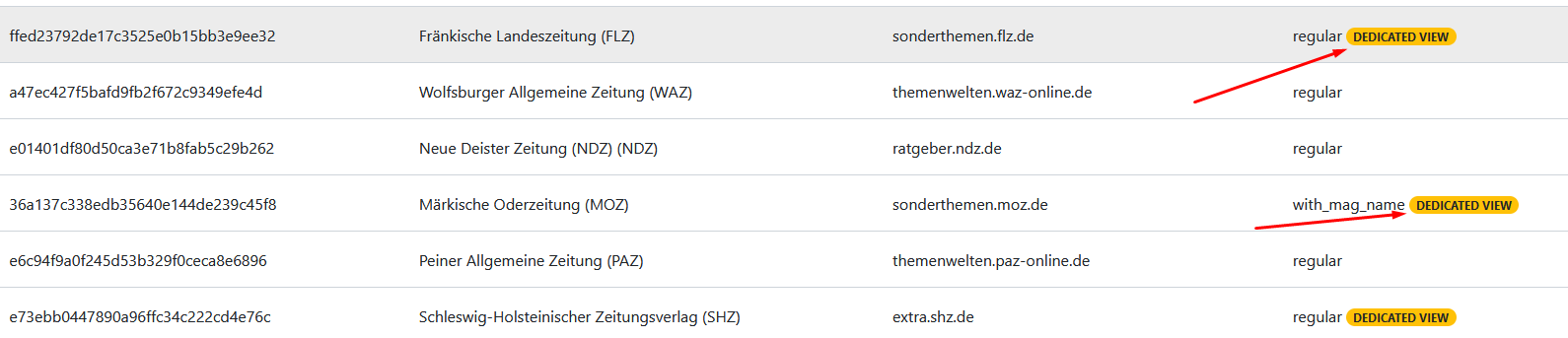
After creating a dedicated view to a widget a label will appear in All Widgets page notifying you this widget has a dedicated view. And if you click on the setting icon the path to the view will be displayed.