Editor
The article editor we’re using is GrapesJS.
Route:
Route::get('/articles/{id}', ArticlesEdit::class)->name('article-edit');
Main Component: app/Http/Livewire/Articles/Edit.php
Main Component view: resources/views/livewire/articles/edit.blade.php
In order for this page to be renderable we need to have a processed PDF file for that article.
After page is loaded, the view is divided in 3 parts.
On left we have the PDF pages ready to be cropped from.
On the right we have the editor split in 2 section:
The first is the main editor view (article section). The second is the Predefined blocks container with elements ready to be dragged and dropped into the article body (Blocks section).
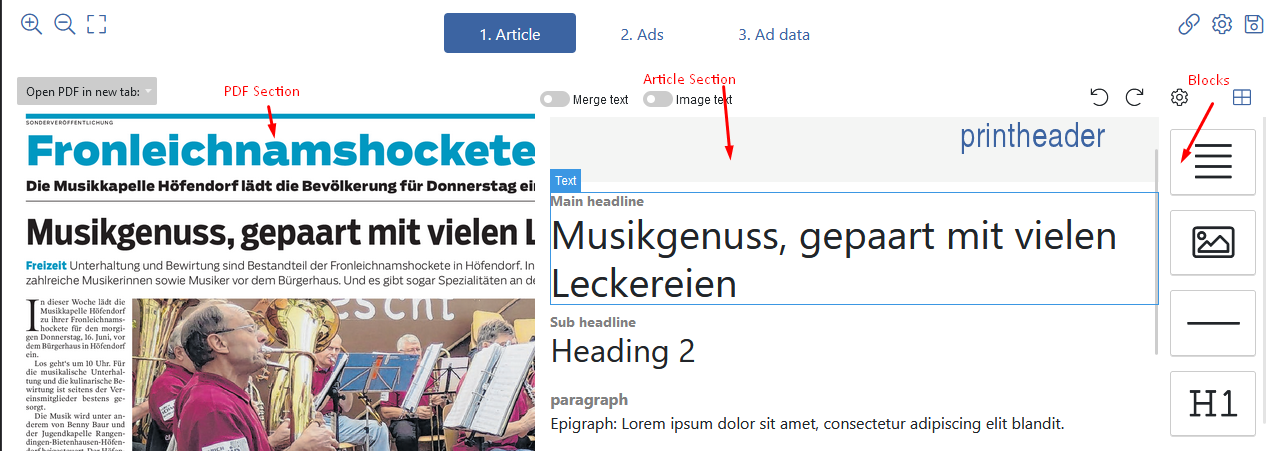
PDF section
This section will display all the PDF Page images (provided by the Processing Scripts and saved into the images DB table) for every PDF that the article is being assigned to. (One article can have more then one pdf assigned to it).
The editor can cropp text and images from these PDF page images.
For the FE Cropping functionality we use SelectAreas jQuery plugin. The function to initialize the plugin is located in public/js/app.js and is called selectAreasInit. For more details check the code, but basically what is doing is executing the base plugin functionality (to select image area) and with the result of the selection to build an object containing the selection data (with,height,area) and we’re passing this object to the function processArea (defined again in public/js/app.js).
function selectAreasInit() {
    $('.selectarea').each(function () {
        $(this).off().selectAreas({
            maxAreas: 1,

            onChanged: function (event, id, areas) {
                $(this).selectAreas('remove', id);
                if (areas.length) {
                    var image = {
                        'pdf_id': event.currentTarget.dataset.pdfId,
                        'src': event.currentTarget.currentSrc,
                        'clientWidth': event.currentTarget.clientWidth,
                        'clientHeight': event.currentTarget.clientHeight,
                        'naturalWidth': event.currentTarget.naturalWidth,
                        'naturalHeight': event.currentTarget.naturalHeight,
                        'area': areas[0]
                    };

                    processArea(image);
                }
            }
        })
    })
}
The processArea currently is written to work in every place of the application we need cropping, thats why in the implementation there’s logics to determine where exactly is being called from in order to provide a slightly diffrent functionality for the diffrent ocasions.
function processArea(image) {
    var activeTab = getActiveTab('article-tabs');
    if (activeTab === '#nav-editor') {
            ....
    if (activeTab === '#nav-ads') {
        ....
    }
    ...
    if (activeTab === '#pdf-file') {
    }
But the general functionality is always the same: to send the image object parameter it receives to the propery text/image extraction endpoint and to place the result correctly. If text to append it or replace other text with it, if image to properly generate <img> tag and place it in the view. For more details check the function implementation.
Article Section
The article section is where the article content is being defined. It has two main section. Article Header and Article Body. You can type in content, crop it or drag&drop it. The default content and the structure of the article is defined in resources/views/layouts/article.blade.php.
The editor is initialized in a livewire:load event.
	<script>
        document.addEventListener('livewire:load', function() {
            editorInit(
				{!! $blocks !!},
				{!! $images !!}
			);

			window.addEventListener('grapes-loaded', function() {
				console.log('loaded');
				editorRestrictions();
				selectAreasInit();
				selectPickerInit();

				// Init custom links functionality
				// In order for this to work, please include /js/linkService.js
				rteCustomLinks();

				editor.on('block:drag:stop', (component, block) => {
					addImgWidthTrait(editor);

					if (component.length && component.length > 1) {
						return false;
					}
					/**
					 * Function is defined in app.js file
					 */
					applyDragAndDropRestrictions(component, block);


				})


			})
        })
    </script>
The editorInit function is defined in public/js/app.js. The blocks and images parameters are fetched on component level via php and passed as arguments. The $images are all of the cropped images from the assigned pdf files and $blocks variable is the system predefined drag&drop blocks.
editorRestrictions
In this function we defined diffrent restrictions on the articles main components like which component is none-deletable, none-dragable etc. Function is defined in public/js/app.js, please check the code for more details
rteCustomLinks
Currently the linking functioanlity is done via custom dialogs/modals, since the default one was not very intuitive. The function is defined public/js/app.js and what it does is removing the default Link functioanlity from the GrapesJS Rich Text editor and adding a new button to its GUI which is calling our own linking functioanlity.
let rteCustomLinks = () => {

    if (editor.RichTextEditor.get('link')) {
        editor.RichTextEditor.remove('link');
    }

    if (!editor.RichTextEditor.get('trm-link')) {
        editor.RichTextEditor.add('trm-link', {
            icon: '<i class="fas fa-link"></i>',
            attributes: {title: 'Link'},
            // Example on it's easy to wrap a selected content
            result: rte => {
                LinkService.linkId = makeid(6);
                LinkService.selectionTxt = rte.selection();
                // rte.insertHTML(`<a id="${window.randomId}" href="#">${rte.selection()}</a>`);
                rte.insertHTML(`<a id="${LinkService.linkId}" href="#">${rte.selection()}</a>`);
                LinkService.openLinkModal();
            }
        });
    }

}
The LinkService code is located in: public/js/linkService.js but the modals for it are provided in the edit.blade.php view file.
Drag & Drop restrictions
In order for the content guys to provide the best results apply some drag&drop restrictions (otherwise they are messing up the article structure).
GrapesJS ships with a lot of built-in events and one of them is editor.on('block:drag:stop', callback), which we’re using the apply certain restrictions. There’s two places where this event is being used.
The first is in the editorInit function in app.js and is doing mostly image stuff: to properly set the drag&dropped image as currently selected element and to do some html transformation on the image element if it’s being drag & dropped into a gallery element. Check the editorInit function for more details.
The 2nd one is in articles\edit.blade.php file right after the editorInit function is being executed. This time the event calls applyDragAndDropRestrictions function which is defined in app.js. This function actually holds the real restrictions about what can be dropped where. I advice you to add all of the new restrictions there. We have logics there for almost all elements. An example restriction:
let applyDragAndDropRestrictions = (component, block) => {
    ....
    let tag = component.get('tagName'),
        parent = component.parent();

    if (tag == 'p') {
        console.log('paragraph, parent parent', parent.parent().getClasses());
        if (parent.parent().getClasses().indexOf('trm-infobox') != -1) {
            return true;
        }

        /** If parent is not trm-article-body remove component and show error message */
        if (parent.getClasses().indexOf('trm-article-body') == -1) {
            toastr.error(
                "Paragraphs cannot be placed in elements different then article body or infobox",
                'Drag&Drop disabled',
                {timeout: 2500}
            );
            component.remove();
            return true;
        }
    }
}
This restriction will check if the current dropped element is paragraph and if it is then it will allow the drop only of parent div has class .trm-article-body or the parent of the parent has a class of .trm-infobox and this way we restrict the paragraph to only be dropped inside article’s body section or inside an infobox.
NOTE: Pay attention that after we decide that we should display an error message we do component.remove() otherwise the element will stay in the restricted element. This is done because in order to check the drag&dropped element parent element we actually need to drag&drop and render it in the element. So after this is done we check if the parent element is valid parent element for this component and if not we actually remove it from the article.
In-editor styles
In a lot of cases we define css for certain elements inside the editor. Those styles are being used only for the element in the editor, they’re no applied in the article itself after being saved. Example for such styles are: borders for some elements, labels for some elements, etc.
They’re being defined in: public/css/grapesjs.inner.css.
So if you want the paragraph inside the article editor to have let’s say font-size of 20px or blue border or to have margins in order to be more visible/recognizable this is the place to define those styles.
Blocks Section
This section is actually part of the GrapesJS Editor, but all of the elements are being defined in config/grapesjs.php in the blocks element.